Garmin
SmartWatch
vivofit 2
Garmin vivofit 2 Instrukcja
Oto Garmin vivofit 2 (SmartWatch) instrukcja użytkownika. 8 strony w języku Angielski o wadze 0.6 Mb. Jeśli nie możesz znaleźć odpowiedzi na swoje pytanie Zapytaj naszą społeczność.
Strona 1/8
vívofit® 2 Owner's Manual
WARNING
See the Important Safety and Product Information guide in the
product box for product warnings and other important
information.
Always consult your physician before you begin or modify any
exercise program.
Getting Started
To get the most out of your vívofit 2 device, Garmin®
recommends setting it up with your computer or compatible
mobile device.
1Go to .
www.garminconnect.com/vivofit2
2Select an option:
• If you are using a computer to set up your device, plug the
wireless USB ANT Stick
™ into an empty USB port, and
download and install the Garmin Express
™
setup software
(Downloading the Software, page 1).
• If you are using a mobile device to set up your device,
install and open the Garmin Connect
™ Mobile app
(Downloading the Mobile App, page 1).
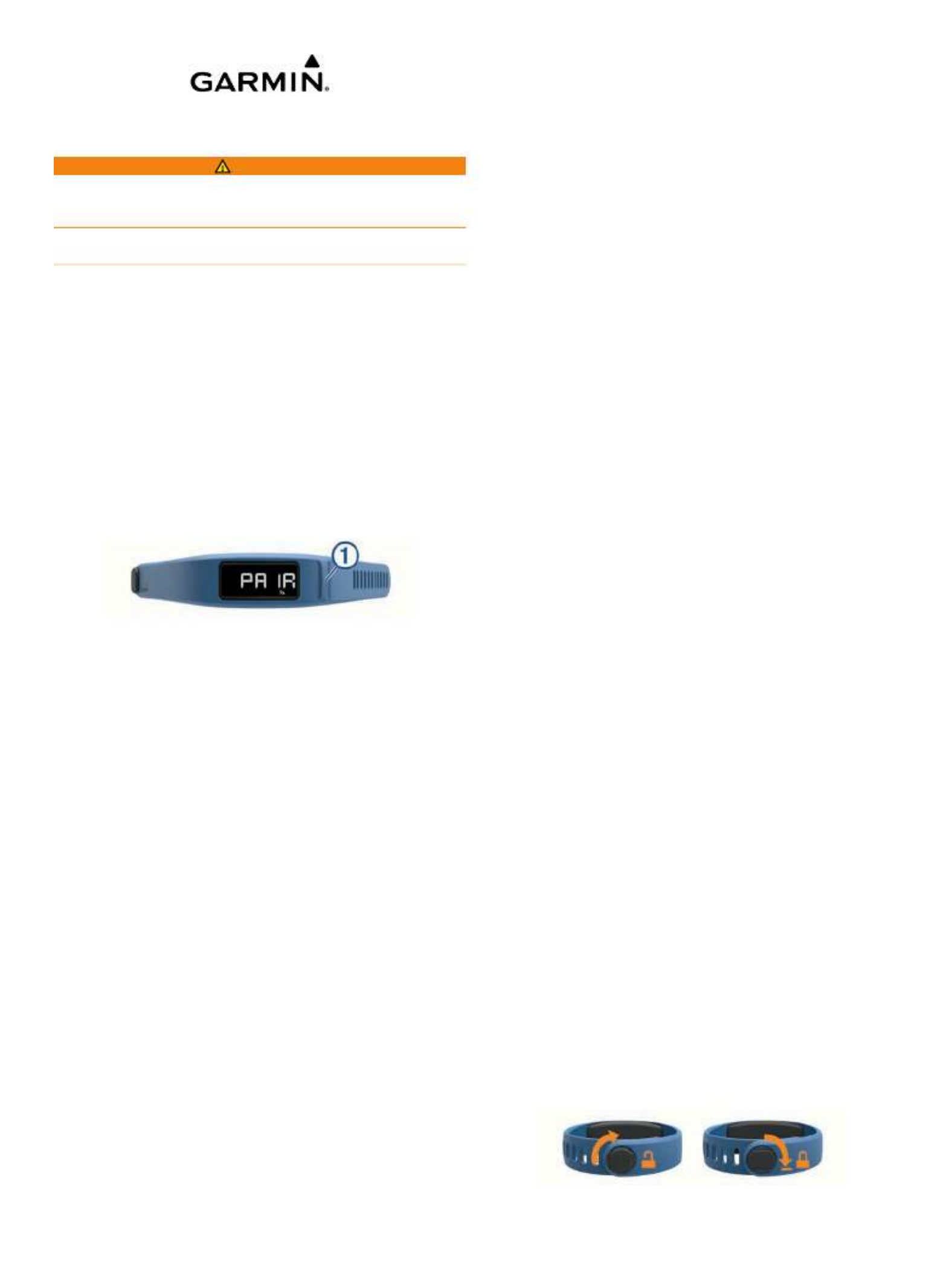
3Select the device key À to turn on the device.
When you turn on the device for the first time, it is in pairing
mode. If your device is not in pairing mode when you turn it
on, you must hold the device key until PAIR appears.
NOTE: Until you pair your device and complete the setup
process, the device has limited functionality.
4Follow the instructions on your computer or mobile device to
pair your vívofit 2 device and complete the setup process.
5Synchronize your step count with your Garmin Connect
account (Synchronizing Your Data with Your Computer,
page 1) (Synchronizing Your Data with the Garmin
Connect Mobile App, page 1).
Downloading the Software
1From your computer, go to .
www.garminconnect.com/vivofit2
2Select an option:
• If you are using a Windows® operating system, select
Download for Windows, and follow the on-screen
instructions.
• If you are using a Mac® operating system, select
Download for Mac, and follow the on-screen instructions.
Downloading the Mobile App
You can use the Garmin Connect Mobile app to pair your
vívofit 2 device and complete the setup process. This allows you
to share and analyze data and download software updates from
your mobile device. Unlike other Bluetooth® devices that are
paired from the Bluetooth settings on your mobile device, your
vívofit 2 device must be paired directly through the Garmin
Connect Mobile app.
NOTE: Your mobile device must support Bluetooth Smart in
order to pair with your vívofit 2 device and synchronize data. Go
to www.garmin.com/ble for compatibility information.
1From your mobile device, go to www.garminconnect.com
/vivofit2.
2Select the App StoreSM button or the Google Play™
button, and
follow the on-screen instructions.
Synchronizing Your Data with Your
Computer
You should synchronize your data regularly to track your
progress in the Garmin Connect application.
1Bring the device within 3 m (10 ft.) of your computer.
2Hold the device key until appears.SYNC
3View your current data in the Garmin Connect application.
Pairing Your Device with Multiple Computers
You can pair your vívofit 2 device with multiple computers. For
example, you can pair your vívofit 2 device with your home and
work computers. Go to buy.garmin.com, or contact your Garmin
dealer for information about optional accessories and
replacement parts.
1Plug the USB ANT Stick into a computer USB port.
2Download the Garmin Express setup software for Windows
or Mac (Downloading the Software, page 1).
3Hold the device key until appears.PAIR
4Follow the instructions on your computer to pair your vívofit 2
device and complete the setup process.
5If necessary, repeat steps 1 through 4 for each additional
computer.
Synchronizing Your Data with the Garmin
Connect Mobile App
You should synchronize your data regularly to track your
progress in the Garmin Connect Mobile app.
Your device periodically synchronizes data with the Garmin
Connect Mobile app without any action required. You can also
manually synchronize your data at any time.
1Bring the device within 3 m (10 ft.) of your mobile device.
2Hold the device key until SYNC appears.
3View your current data in the Garmin Connect Mobile app.
Pairing Multiple Mobile Devices
You can pair your vívofit 2 device with multiple mobile devices.
For example, you can pair your vívofit 2 device with a
smartphone and a tablet.
1Install and open the Garmin Connect Mobile app on your
mobile device (Downloading the Mobile App, page 1).
2Hold the device key until appears.PAIR
3Follow the instructions on your mobile device to pair your
vívofit 2 device and complete the setup process.
4If necessary, repeat steps 1-3 for each additional mobile
device.
Wearing the Device
1Select a band that fits best on your wrist (Replacing the
Band, page 5).
2Make sure the pegs on the clasp are fully inserted into the
band.
When the pegs are fully inserted, the device fits securely
against your wrist.
3Turn the clasp to the locked position.
Red marks on the clasp indicate the unlocked position.
October 2015 Printed in Taiwan 190-01839-00_0C
Rozwiązywanie problemów Garmin vivofit 2
Jeśli dokładnie przeczytałeś instrukcję, ale nie znalazłeś rozwiązania swojego problemu, poproś o pomoc innych użytkowników
Specyfikacje
| Kolor produktu: | Czarny |
| Typ wyświetlacza: | LCD |
| Wysokość produktu: | 10 mm |
| Szerokość produktu: | 25.5 mm |
| Waga produktu: | 25.5 g |
| Technologia łączności: | Bezprzewodowy |
| Bluetooth: | Nie |
| Ekran dotykowy: | Nie |
| Akcelerometr: | Tak |
| Rodzaj baterii: | CR1632 |
| Obsługiwane operacyjne systemy komórkowe: | Android |
| Wodoodporny: | Tak |
| Typ napędu: | Opaska do monitorowania aktywności |
| Pedometr: | Tak |
| Żywotność baterii: | 365 dni |
| Liczba opasek w zestawie: | 2 |
| Grubość: | 10 mm |
| Monitor pracy serca: | Tak |
| Odporność na wodę: | 5 ATM |
| Rozmiar opaski: | S/L |